To whitelist an email in Gmail, add the sender to your Google Contacts. If the message is already in spam, open it and click Report not spam. That fixes most cases. If it keeps landing in the Promotions tab, move it to Primary or set up a filter.
Outlook, Apple Mail, and Yahoo each use different words for it (safe senders, VIP, filters), but the job is the same: tell your inbox you want mail from this sender. This guide shows how to whitelist an email in Gmail (web and phone), Outlook, Apple Mail, and Yahoo, and what to do when whitelisting doesn’t stick. If you run an email list, there’s a section for you too, plus a checklist at the end.
We make email tools, so we’ve been on both sides of this. A message you wanted and never saw is the most annoying kind of broken.
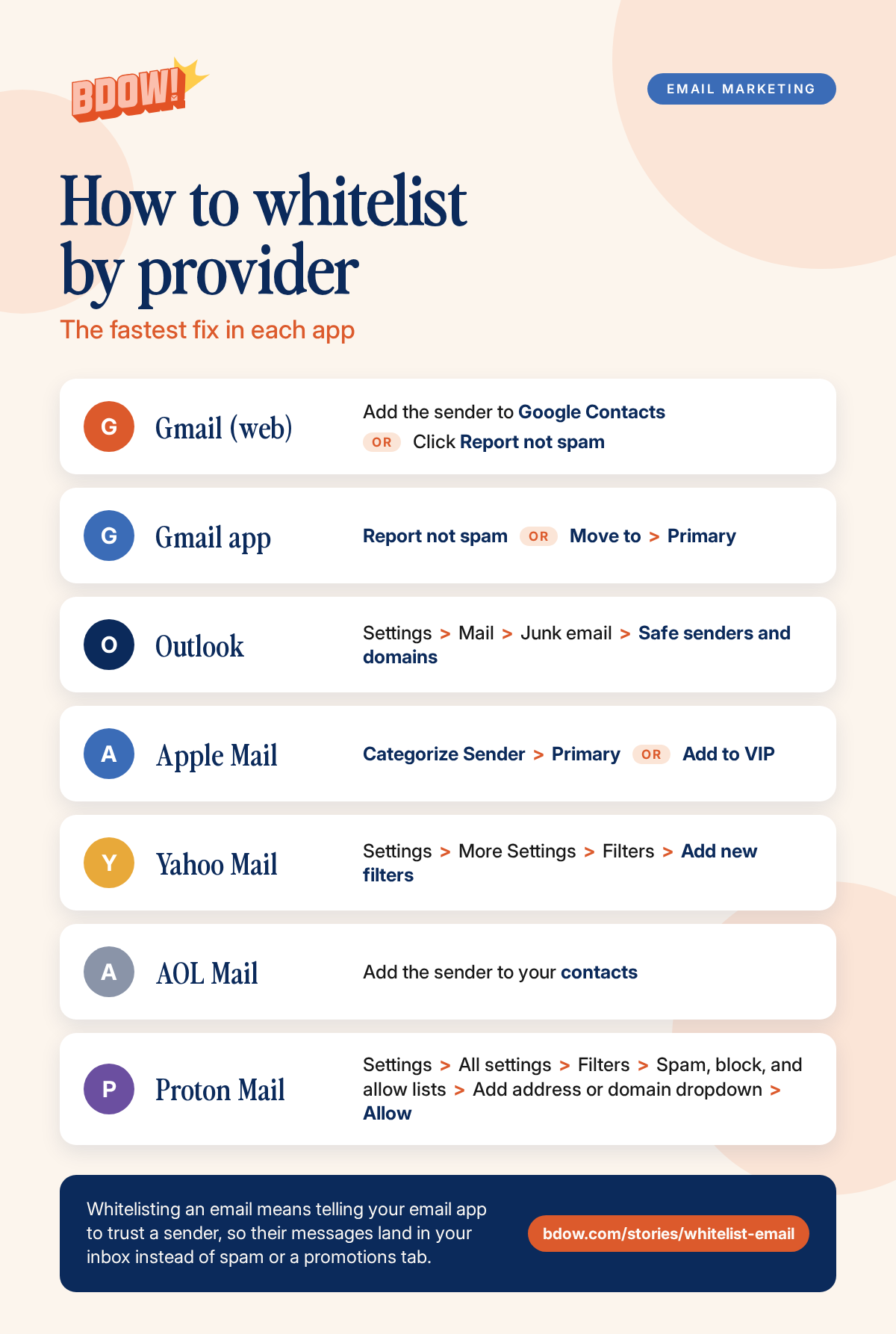
The fastest fix in each app
| App | Fastest fix |
|---|---|
| Gmail (web) | Add the sender to Google Contacts, or click Report not spam |
| Gmail app | Report not spam, or Move to > Primary |
| Outlook | Settings > Mail > Junk email > Safe senders and domains |
| Apple Mail | Categorize Sender > Primary, or Add to VIP |
| Yahoo Mail | Settings > More Settings > Filters > Add new filters |
| AOL Mail | Add the sender to Contacts, or click Not Spam |
| Proton Mail | Settings > Filters > Spam, block, and allow lists > Allow |
What does it mean to whitelist an email?
Whitelisting an email means telling your email app to trust a sender, so their messages land in your inbox instead of spam or a promotions tab. You’ll also hear it called allowlisting (or an allow list), adding a safe sender, or approving a sender. Allowlisting emails is the newer term for the same job, and the steps below cover it.
The catch is that three different problems get called “whitelisting.” Work out which one you have first. It keeps you from changing settings that don’t matter.
| What you see | What’s going on | What fixes it |
|---|---|---|
| The email is in Spam or Junk | Your app decided the sender looked risky | Report not spam, add a contact, or add a safe sender |
| The email is in Promotions, Updates, or another category | Your app sorted it, but it isn’t spam | Move it to Primary, or categorize the sender |
| It keeps going back to the wrong place | You fixed one message, not the sender | A filter, a safe senders list entry, or a rule |
How do you whitelist an email in Gmail?
Gmail doesn’t have a button called “whitelist.” You get the same result four ways, and they work whether you want to whitelist email addresses in Gmail one at a time or a whole domain at once. Start with the first one.
Does Gmail have a safe sender list?
No. Gmail has nothing called a safe senders list the way Outlook does. The closest equivalents are your Google Contacts, which keep a sender out of Spam, and a filter with Never send it to Spam, which works as a rule for an address or a whole domain. Both are below.
1. Add the sender to your contacts
Google says that adding a sender to your contacts stops Gmail from sending their messages to Spam. It’s the easiest option and works for any sender.
- Go to contacts.google.com and click Create contact.
- Enter the sender’s name and email address.
- Click Save.
You can also add a contact from the email itself: open the message and look for the option to add the sender to your contacts.
2. If the email is in spam, click Report not spam
- In the left menu, click Spam. If you don’t see it, click More first.
- Open the message.
- Click Report not spam.
Once it’s out of Spam, future emails from that sender won’t go to Spam. If you select the message with its checkbox in the list instead of opening it, the button at the top says Not spam.
3. If it’s in Promotions, move it to Primary
- Open the Promotions tab.
- Drag the email to the Primary tab.
- Gmail shows a message at the bottom left. If it asks whether to do this for future messages from the sender, click Yes. To undo the move, click Undo.
If you skip the question, only that one message moves.
4. Create a filter (a rule that always applies)
A filter is the closest thing Gmail has to a true allow list. Use it when the same sender keeps landing in the wrong place.
- Click the gear icon, then See all settings.
- Open the Filters and Blocked Addresses tab and click Create a new filter.
- In the From field, enter the sender’s address. To cover a whole domain, enter @example.com.
- Click Create filter.
- Check Never send it to Spam.
- To keep it out of Promotions too, check Categorize as and choose Primary.
- Optional: check Also apply filter to matching conversations to fix mail that’s already there.
- Click Create filter.
Filters apply to new mail from the moment you save them.
How do you whitelist an email in the Gmail app?
Want to whitelist an email in the Gmail app on your phone? These steps work on Android and iPhone.
If the email is in spam:
- At the top left, tap Menu, then Spam.
- Open the message. (On iPhone, you can also touch and hold it.)
- At the top right, tap More, then Report not spam.
If it’s in Promotions:
- Open the Promotions tab.
- Open the email.
- Tap More, then Move to, then select Primary.
To add a contact: Google says that once the sender is in Google Contacts, their emails won’t go to Spam. On Android, open the Contacts app, tap Add, enter the name and email address, and tap Save. On iPhone, open a browser, go to Google Contacts, tap Add, then Create a contact, enter the details, and tap Save.
To create a filter (step 4 above), Google says you have to open Gmail on a computer.
Work or school Gmail: your admin can override your personal settings. If a vendor’s emails never arrive, ask IT to allow their domain.
How do you add a safe sender in Outlook?
Outlook calls it the safe senders list. Anyone on it skips the junk filter. Microsoft explains the same steps on its Safe Senders page. The steps depend on which Outlook you use.
New Outlook, Outlook on the web, and Outlook.com
- Select the gear icon (Settings).
- Select Mail, then Junk email.
- Scroll down to Senders and select the Safe senders and domains tab.
- Select + Add safe sender and enter the email address or domain, such as hello@example.com or example.com.
- Select OK, then select Save.
Classic Outlook for Windows
- On the Home tab, in the Delete group, select Block (it might say Junk), then Junk E-mail Options.
- On the Safe Senders tab, click Add.
- Enter the email address or domain and click OK.
- Optional: check Also trust email from my Contacts. Microsoft says this is on by default.
- Click OK to close the Junk E-mail Options window.
Where is the safe senders list in Outlook?
In Outlook on the web, new Outlook, and Outlook.com, it’s the same screen you used to add a sender: Settings > Mail > Junk email > Safe senders and domains. To remove an entry, find it in the list, remove it, and select Save. In classic Outlook for Windows, open Junk E-mail Options > Safe Senders, select the address, and click Remove.
If the email is already in Junk
Open your Junk Email folder, select the message, select Report, then select Not junk. Then add the sender to your safe senders list so it doesn’t happen again.
Microsoft says email addresses in your Outlook contacts are treated as safe senders by default, so saving the sender as a contact also helps. In Outlook’s Junk email settings, that’s the Trust email from my contacts check box.
How do you whitelist an email in Apple Mail (iPhone, iPad, and Mac)?
Apple Mail doesn’t have a safe senders list, so there’s no “add to safe senders” button. These are the closest things, and they work well. Apple documents the category steps in its Mail User Guide.
iPhone and iPad
Categorize the sender (iOS 18.2 or later). Apple Mail sorts mail into Primary, Transactions, Updates, and Promotions. You can tell it where a sender belongs.
- Tap a message from the sender in your Primary list.
- Tap the More button.
- Tap Categorize Sender.
- Choose Primary and tap Continue.
If the message is in Transactions, Updates, or Promotions, tap it, tap the More button at the top of the message list, then choose Categorize Sender.
Add the sender to VIP.
- Open an email from the sender.
- Tap the sender’s name or email address in the message header, then tap View Contact Card.
- Tap Add to VIP.
If it’s in Junk: go to Mailboxes, open Junk, and open the message. Tap the Move to Folder button, then tap Inbox. Apple says future messages from that sender then aren’t marked as junk.
Mac
Categorize the sender. Control-click the message, choose Categorize Sender, then pick Primary. Apple says all current and future messages from that sender go to the category you choose.
Create a rule. A rule is the strongest option on a Mac.
- In Mail, click Mail in the menu bar, then Settings, then Rules.
- Click Add Rule and give it a name, such as “Allow example.com.”
- For the condition, use the pop-up menus to choose From and Contains, then enter the address or domain, like @example.com.
- For the action, choose Move Message from the first pop-up menu, then choose your Inbox.
- Save the rule.
How do you whitelist an email in Yahoo Mail, AOL, and Proton?
Yahoo Mail (desktop browser):
- Click the Settings icon, then More Settings.
- Click Filters, then Add new filters.
- Enter the filter name, set the filter rules so the sender is the address you want, and choose Inbox as the folder.
- Click Save at the bottom.
Yahoo runs filters from the top down, and if two filters match the same email, the top one wins. If the email is already in Spam, open the Spam folder (if you don’t see it, click More below Sent), select the email, and click Not spam. Yahoo says future messages from that sender go to your inbox.
AOL Mail: add the sender to your contacts. Open the email, click the More options icon, choose Add Sender to Contacts, enter the details, and click Save. If it’s in Spam, open the Spam folder, select the email, and click Not Spam. AOL says future messages from that sender go to your inbox.
Proton Mail: go to Settings > All settings > Filters > Spam, block, and allow lists. Click the dropdown on Add address or domain and choose Allow. Pick Email or Domain, enter it, and click Add address.
Is it safe to whitelist an email?
Yes, if you trust the sender. Whitelisting tells your inbox to skip its spam and phishing checks for that sender, so only do it for people and companies you know. Scammers can fake a display name, so check the full address before you add anyone. Prefer a single address over a whole domain, and never whitelist someone because an email told you to.
Whitelisted the email but it’s still going to spam?
Work down this list.
- Check the exact address. Many companies send from a different address than the name suggests, especially through a marketing tool. Open the message, look at the full address, and add that. Or allow the whole domain.
- Check your blocked lists. In Gmail, look in Settings > See all settings > Filters and Blocked Addresses. In Outlook, check Blocked senders in the same Junk email settings. A block can beat an allow.
- Look for a conflicting filter. An older filter that deletes, archives, or labels the sender may be doing the damage.
- Search for it. In Gmail, search
in:spam from:hello@example.comto see whether the messages are going to Spam or being filtered somewhere else. - Remember new rules only affect new mail. Anything already delivered has to be moved by hand.
- Interact with one. Replying to a message isn’t a guarantee, but mailbox providers pay attention to whether you engage with a sender.
If none of that works, the problem is probably on the sender’s side. Their email may be failing authentication, and only they can fix it. Tell them. A good sender will thank you.
How do you get your subscribers to whitelist your emails?
If you run an email list, you’re on the other side of this. You can’t whitelist yourself, but you can ask.
We do this at BDOW!. We ask our own subscribers to add us to their contacts, and we think it helps. We don’t have hard numbers on it, so treat it as a cheap habit rather than a proven lever.
Here’s how to ask without sounding needy:
- Name the exact sending address. Use the same From name and address every time.
- Ask early. Put it in the welcome email, not email five.
- Give one action. Add the address to contacts, or reply to the email. Link to this guide for the how-to.
- Ask in two places. On the screen people see right after they subscribe, and in the welcome email.
- Keep it short. No begging, no fake urgency.
Here’s copy you can steal:
Quick favor: add hello@yourdomain.com to your contacts so my emails land in your inbox, not spam or Promotions. Here’s how to do it in Gmail, Outlook, and Apple Mail: [link to this guide]
Where BDOW! fits. In BDOW!, all of this lives on your form’s Success tab:
- A success message is what your form shows right after someone subscribes. Put the ask there.
- A redirect URL sends new subscribers to a page of your choice, such as a thank-you page that links to this guide.
- An Auto Response Email is a welcome email BDOW! sends for you after someone subscribes. You set the subject, From name, and From address. Our welcome email examples show what to put in it.
If you send that email from your own address, validate your domain first. In your BDOW! site manager, go to Settings, then Email, click Add Domain, add the three CNAME records BDOW! gives you at your domain provider, then click Validate. The BDOW! help center says validating your domain improves the deliverability of your emails.
Two more things help more than the ask itself:
- Authenticate your domain. Google’s sender guidelines require SPF or DKIM for everyone who sends to Gmail, and SPF, DKIM, and DMARC for anyone sending more than 5,000 messages a day. Microsoft requires the same of high-volume senders to Outlook.com.
- Confirm new subscribers. A double opt-in keeps fake and mistyped addresses off your list, so fewer of your emails bounce or get reported.
If you’re still building the list, our guide to lead magnets and our walkthrough for your first automated email are good next reads.
Whitelist email FAQ
What does it mean to whitelist an email?
Whitelisting an email means telling your email app to trust a sender, so their messages land in your inbox instead of spam or a promotions tab. It’s also called allowlisting, an allow list, or adding a safe sender. You can whitelist a single address, like hello@example.com, or a whole domain, like example.com.
How do you whitelist an email address?
Add the sender to your contacts first. In Gmail, that stops their mail going to Spam. In Outlook, add them to your safe senders list. In Apple Mail, categorize the sender as Primary or add them to VIP. If you need a permanent rule, create a filter or rule for their address.
Does Gmail have a safe sender list?
No. Gmail doesn’t have a safe senders list like Outlook’s. Instead, add the sender to Google Contacts, or create a filter with Never send it to Spam under Settings > See all settings > Filters and Blocked Addresses. Either one does the same job as a safe sender list, and a filter can cover a whole domain.
How do I whitelist an email in Gmail?
Add the sender to Google Contacts, or open the email in Spam and click Report not spam. For a permanent rule, go to Settings > See all settings > Filters and Blocked Addresses, create a filter for the sender, and select Never send it to Spam. In the Gmail app, use Report not spam or Move to > Primary.
How do I whitelist an email in Outlook?
Open Settings > Mail > Junk email, then select the Safe senders and domains tab and select + Add safe sender. Enter the address or domain, select OK, then select Save. In classic Outlook for Windows, go to Home > Block (it might say Junk) > Junk E-mail Options, open the Safe Senders tab, and click Add.
Can I whitelist a whole domain instead of one address?
Yes. In Gmail, enter @example.com in the From field of a filter. In Outlook, add the domain, such as example.com, to Safe senders and domains. On a Mac, make a Mail rule where From contains the domain. A domain rule helps when a company sends from several addresses.
Why are whitelisted emails still going to spam?
Check that you added the exact address the email came from, because many companies send from a different one than the name shows. Then look for a blocked-sender entry or a conflicting filter. If those are fine, the sender probably has an authentication problem, and only they can fix it.
The BDOW! email deliverability checklist
Whitelisting fixes the last mile. Getting to the inbox starts earlier, and a lot of it is on the sender. This checklist covers both sides, starting with the part you can do in five minutes. Tick things off as you go.
Each item has a short prompt you can paste into your AI assistant when you want help getting it set up. Swap in the details in [brackets].
A note before you use the prompts: never paste passwords, API keys, or login links into an AI tool. DNS records and email headers are fine, but strip out any personal addresses you don’t want to share. Check anything an AI tells you against your email tool’s help docs before you change your DNS.
1. Ask to be whitelisted
- ☐ Use one sending address and keep it. Same From name and address every time, so people know what to add.
- ☐ Ask in the welcome email and on the success screen. Name the address and link to a how-to.
- ☐ Make it easy to reply. Send from an address that’s monitored, not a no-reply one.
AI prompt: I send email from [address] using [email tool]. Write 3 short asks for new subscribers to add this address to their contacts: one for the thank-you screen, one for the welcome email, one for the footer. Under 40 words each, plain tone.
2. Authenticate your domain
- ☐ Send from a domain you own. Not gmail.com or yahoo.com.
- ☐ SPF. One record that lists everything allowed to send for your domain.
- ☐ DKIM. Your email tool gives you a record to publish so your messages are signed.
- ☐ DMARC. Start with a policy of none and watch the reports. Google and Microsoft both want one from bulk senders.
- ☐ Alignment. The domain in your From address should match the domain that passes SPF or DKIM.
- ☐ In BDOW!: validate your domain under Settings > Email (three CNAME records, then Validate).
AI prompts:
- SPF:
Here are my domain's TXT records: [paste]. I send email through [tools]. Check that I have exactly one SPF record and that it covers all my senders. Tell me what to fix. - DKIM:
My email tool gave me this DKIM record: [paste]. I use [domain registrar]. Tell me the record type, what goes in Host and Value, and how to check that it worked. - DMARC:
My domain [domain] has no DMARC record. Write a starter record with policy p=none that sends reports to [address], and explain how to tighten it over time. - Alignment:
Here are the full headers from a test email I sent: [paste]. Tell me whether SPF, DKIM, and DMARC passed, and whether my From domain aligns. - BDOW! domain:
BDOW! gave me these three CNAME records: [paste]. My DNS is at [registrar]. Walk me through adding them, including the Host vs Name and trailing period quirks.
3. Keep your list clean
- ☐ Only email people who asked. No bought lists, no scraped addresses.
- ☐ Confirm new subscribers. Consider a double opt-in.
- ☐ Show a clear unsubscribe link. For marketing email, Google also asks for one-click unsubscribe and for requests to be honored within 48 hours.
- ☐ Remove hard bounces. Don’t keep mailing addresses that don’t exist.
- ☐ Re-engage or remove people who never open. Pick a window, send one last email, then let them go.
AI prompts:
- Footer:
Check my email footer for a clear unsubscribe link and anything a bulk sender is expected to include: [paste footer] - Cleanup:
I have [number] subscribers. Suggest a re-engagement plan for people who haven't opened in [number] months, including a final email and when to remove them.
4. Watch the signals
- ☐ Sign up for Google Postmaster Tools if you send to a lot of Gmail addresses. Keep your spam rate under 0.10% and never let it reach 0.30%.
- ☐ Send a test to your own inboxes. Gmail, Outlook, Yahoo, and iCloud. See where it lands.
- ☐ Check the headers. In Gmail, open the message, click the three dots, and choose Show original. Look for PASS on SPF, DKIM, and DMARC.
AI prompts:
- Postmaster:
My Google Postmaster Tools shows [spam rate, domain reputation, authentication results]. Explain what each one means and what I should change first. - Placement:
My test email landed in [Spam / Promotions] in [app]. Here are the headers and the body: [paste]. List the most likely causes in order.
5. Know Promotions from spam
- ☐ Spam means trust. Look at authentication, complaints, and list quality first.
- ☐ Promotions means sorting. It’s Gmail’s tab for marketing, not a failure. Ask readers to move you to Primary instead of chasing tricks.
AI prompt: Explain in plain English why a marketing email might land in Gmail's Promotions tab vs Spam, and which one I should worry about for [type of business].
6. Tidy up the email itself
- ☐ Use real text, not one big image.
- ☐ Make sure every link works, and skip link shorteners.
- ☐ Keep a consistent From name and subject style.
- ☐ Include a physical address and a clear reason they’re getting the email.
AI prompt: Review this email for things that commonly cause spam filtering: [paste]. Only flag real issues, and say why each one matters.
Get a copy of the checklist
Want a copy to keep? Our free checklist walks you through six steps to keep your emails out of spam, with a short AI prompt for each one.




Add A Comment
VIEW THE COMMENTS